I've been building out a simple online clone of Bananagrams in my spare time.
It's a word game similar to Scrabble, but without a fixed board and turns, and it's banana themed.
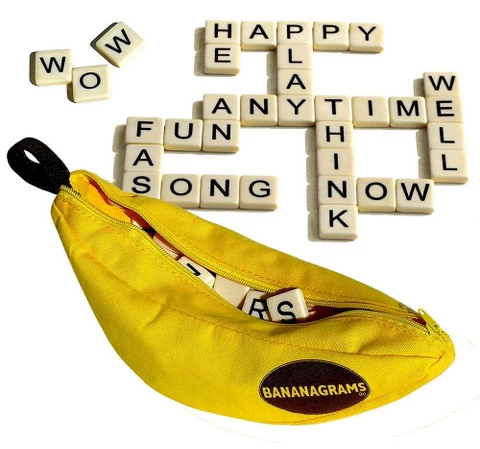
Today I want to talk about this simple interaction as part of the game: dragging the tiles around with some basic tilt physics in plain HTML, CSS, and a little bit of JavaScript.
First, let's start by drawing a single tile on the DOM and style it appropriately:
<!-- index.html -->

<body>
  <div class="tile">Y</div>
</body>
/* styles.css */
/* Make it look like a 36x36 tile */
.tile {
width: 36px;
height: 36px;
display: grid;
place-items: center;
background: white;
border: 1.5px solid black;
border-bottom-width: 2.5px;
touch-action: none;
user-select: none;
cursor: grab;
}
.tile:active {
cursor: grabbing;
}OK, well there's our tile and our cursor looks like it's grabbing it on mouse down, but it doesn't do anything.
To make it move, we need to know:
- What should happen when I click or press on the tile?
- What should happen when I move it around with my click/press still active?
- What should happen when I lift my finger to stop?
We want to be able to listen to these events so that the moment they happen, we know how to manipulate the tile in response.
With JavaScript, we can use the addEventListener method to attach custom logic to any arbitrary HTML element (in this case, our singular tile) that runs whenever some event occurs. The events that we'll want to pay attention to, and answer the questions above, are:
pointerdownpointermovepointeruppointercancel
First, let's create a script.js to include in our HTML and target the tile as follows:
/* script.js */

// Grab the tile from the HTML document via the ".tile" class name
const tile = document.querySelector(".tile")
Then, we can scaffold the event listening logic:
/* script.js */

// Grab the tile from the HTML document via the ".tile" class name
const tile = document.querySelector(".tile")

// Listen for these events on the tile object
tile.addEventListener("pointerdown", (event) => { /* ... */ })
tile.addEventListener("pointermove", (event) => { /* ... */ })
tile.addEventListener("pointerup", (event) => { /* ... */ })
tile.addEventListener("pointercancel", (event) => { /* ... */ })
addEventListener accepts a callback function that passes an event object to us, such that we can access more details about the interaction that just occurred. In this case, event would be an instance of PointerEvent.
There are two useful properties on PointerEvent to help us with positioning the tile:
clientX: Thexcoordinate of the mouse pointer in viewport coordinatesclientY: Theycoordinate of the mouse pointer in viewport coordinates
This is pretty much all we need to move the tile around, and we can start implementing the basic logic for it.
First, let's configure the starting position of the tile using CSS:
.tile {
  /* ... existing properties ... */

  /* Position tile starting around top left */
  position: fixed;
  top: 24px;
  left: 24px;
}
For the demos, I have
topandleftcalculated to be the center of the viewport, but for simplicity, let's assume they're fixed at 24px from the top and left.
In script.js, let's keep track of some dragging state and, in pointerdown, set it to true to signal an intent to move the tile.
/* script.js */

// Grab the tile from the HTML document via the ".tile" class name
const tile = document.querySelector(".tile")

// Bookkeeping for drag state
let dragging = false;

tile.addEventListener("pointerdown", (event) => {
  // If we're already in a dragging state for some reason, exit early
  if (dragging) return;

  dragging = true;

  // Ensure pointer events don't drop
  tile.setPointerCapture(event.pointerId);
})
One important thing to note: we also need to call
setPointerCaptureon the tile with the event'spointerIdin order to keep sending the pointer's events to the tile, even when the pointer moves outside it. Otherwise, during fast drags, the pointer can move beyond the tile before it catches up, and stop receiving pointer events, causing jittery start-stop movement.
Then, in pointermove, we check that we're in a valid dragging state, and read the clientX and clientY of the pointer event, assigning it as the tile's new position inline via its style attribute:
/* script.js */

tile.addEventListener("pointermove", (event) => {
  // Verify that we're dragging
  if (!dragging) return;

  // Get new x and y coordinates via pointer event
  let newX = event.clientX;
  let newY = event.clientY;

  // Update tile's position with new x and y
  tile.style.left = `${newX}px`;
  tile.style.top = `${newY}px`;
})
And finally, in pointerup and pointercancel, we set dragging to false to end:
/* script.js */

tile.addEventListener("pointerup", (event) => {
  if (!dragging) return;
  dragging = false;
})

tile.addEventListener("pointercancel", (event) => {
  if (!dragging) return;
  dragging = false;
})
It works well enough, but when we grab the tile, the tile's top-left corner always snaps to under our pointer because we position it via the left and top attributes with CSS. It doesn't remember the exact location of where we grabbed it.
To fix this, we need to calculate our pointer's distance from the tile's top-left corner on pointerdown, using the tile's starting coordinates which we can get via getBoundingClientRect():
/* script.js */

// Pointer's distance from tile's top-left corner
let offsetX = 0;
let offsetY = 0;

tile.addEventListener("pointerdown", (event) => {
  // If we're already in a dragging state for some reason, exit early
  if (dragging) return;

  dragging = true;

  // Get tile's top-left (x, y) coordinates
  const tileRect = tile.getBoundingClientRect();
  let tileX = tileRect.left;
  let tileY = tileRect.top;

  // Save pointer's distance from tile's top-left coords
  offsetX = event.clientX - tileX;
  offsetY = event.clientY - tileY;

  // Ensure pointer events don't drop
  tile.setPointerCapture(event.pointerId);
})
In pointermove, we subtract those distances when moving the tile so it keeps the point we grabbed beneath our pointer, preventing it from jumping when the drag begins:
/* script.js */

tile.addEventListener("pointermove", (event) => {
  // Verify that we're dragging
  if (!dragging) return;

  // Get new x and y coordinates, WITH OFFSET
  let newX = event.clientX - offsetX;
  let newY = event.clientY - offsetY;

  // Update tile's position
  tile.style.left = `${newX}px`;
  tile.style.top = `${newY}px`;
})
Feels better.
OK, now let's make it tilt when we drag it around!
I know that I want it to respond to my cursor's movement and velocity, so if I move it to the left faster, it should also swing back to the right more.
Let's first figure out how to measure the velocity of our cursor. In pointermove, we already have access to its horizontal position via event.clientX as written above. We need to calculate the change in that over some elapsed time to get velocity.
In JavaScript, we can use performance.now() to get the current time in milliseconds. To calculate the change, we keep track of the previous position and time globally, initializing them inside pointerdown :
/* script.js */

let lastX = 0;
let lastTime = 0;

tile.addEventListener("pointerdown", (event) => {
  // ...

  // Remember the current horizontal pos of tile
  // and timestamp of `pointerdown` event
  lastX = event.clientX;
  lastTime = performance.now();
})
And then inside pointermove, we calculate the velocity by measuring the elapsed time between calls:
/* script.js */

tile.addEventListener("pointermove", (event) => {
  // ...

  // Get current timestamp of `pointermove` event
  const now = performance.now();

  // Calculate velocity
  const distance = event.clientX - lastX;
  const elapsed = now - lastTime;
  const velocity = distance / elapsed;

  // Update lastX and lastTime for next `pointermove` call
  lastX = event.clientX;
  lastTime = now;
})
velocity here is measured in pixels per millisecond, so moving the tile to the right by 20 pixels in 10 milliseconds returns 2 px/ms. Moving it to the left would return a negative value.
Already we can do some fun stuff with velocity alone, like making the tile more yellow the faster it moves:
/* script.js */

tile.addEventListener("pointermove", (event) => {
  // ...

  // Get the absolute velocity and normalize it between 0 and 1
  // to use as the alpha (intensity) of tile's yellow background
  const absVelocity = Math.abs(velocity);
  const intensity = Math.max(0, Math.min(1, absVelocity));
  tile.style.background = `rgba(255, 255, 0, ${intensity})`;
})

// Restore default state after drag ends
tile.addEventListener("pointerup", (event) => {
  // ...
  tile.style.removeProperty("background");
})
tile.addEventListener("pointercancel", (event) => {
  // ...
  tile.style.removeProperty("background");
})
or imitating motion blur when moving it:
/* script.js */

tile.addEventListener("pointermove", (event) => {
  // ...

  const absVelocity = Math.abs(velocity);
  const intensity = Math.max(0, Math.min(1, absVelocity));
  tile.style.filter = `blur(${intensity * 3}px)`;
})
But let's not get distracted and return to our original goal of making it tilt.
Based on the velocity, let's calculate some target angle and apply it to the tile via style.transform:
/* script.js */

let targetAngle = 0;

tile.addEventListener("pointermove", (event) => {
  // ...

  // Multiple by some magic number to produce
  // a more noticeable tilt on move
  targetAngle = velocity * 20;

  // Apply target angle
  tile.style.transform = `rotate(${targetAngle}deg)`;
})

// Restore default angle after drag ends
tile.addEventListener("pointerup", (event) => {
  // ...

  targetAngle = 0;
  tile.style.transform = `rotate(${targetAngle}deg)`;
})
tile.addEventListener("pointercancel", (event) => {
  // ...

  targetAngle = 0;
  tile.style.transform = `rotate(${targetAngle}deg)`;
})
And now the tile tilts when we move it. We can also clamp the angle if we want, to prevent the tile from spinning excessively during movement, but I'll leave that for now.
There's one more thing we can improve on: while moving the tile around, you might notice the angle jumping sharply and jarringly. This is because the angle comes directly from the pointer's velocity, so when we quickly reverse direction, the sign changes from positive to negative, and the angle jumps from something like 20º to -20º.
Is there a way to soften and add some easing to the change in angle across all movement? Yes, if we use something that continuously updates the angle of the tile outside of the pointer event loop we've set up.
For that, we can lean on window.requestAnimationFrame(), which is a method that accepts a callback function and tells the browser that we want to run said function before the next screen repaint. If we call requestAnimationFrame() within the callback, we essentially create a recursive loop that runs the callback matched to the display refresh rate.
let count = 0;

// Simple function that counts up at a rate
// synced to display refresh rate
function countUp() {
  count += 1;
  console.log(count);

  // Recursively call countUp on each frame
  requestAnimationFrame(countUp);
}

// Kick off first call
requestAnimationFrame(countUp);
On every frame, we want to know:
- What is the current angle of the tile?
- What is the target angle of the tile?
- What is the rate at which the current angle should approach the target angle? (Our smoothing logic)
First, let's move all our transform logic out of the pointer events, and into some animateTileAngle() function, which will be the callback passed into requestAnimationFrame():
/* script.js */

// ...

function animateTileAngle() {
  // targetAngle will still be calculated and
  // handled by pointermove event loop

  // Apply target angle
  tile.style.transform = `rotate(${targetAngle}deg)`;

  // Schedule next update
  requestAnimationFrame(animateTileAngle);
}

requestAnimationFrame(animateTileAngle);
Everything should function the same as before.
Now, in addition to the target angle of the tile, we need to keep track of its current angle at any given frame, because that is what we'll actually be using to render the tile's tilt.
On each frame, we can have the current angle progress towards the target angle at a rate of 20% per frame, which looks something like this:
/* script.js */

let currentAngle = 0;
let targetAngle = 0;

// ...

function animateTileAngle() {
  // Progress toward target angle by 20% each frame
  currentAngle += (targetAngle - currentAngle) * 0.2;

  // Apply up to date current angle instead of target angle now
  tile.style.transform = `rotate(${currentAngle}deg)`;

  // Schedule next update
  requestAnimationFrame(animateTileAngle);
}

requestAnimationFrame(animateTileAngle);
And finally, to make it settle to an angle of 0 at the end, we add this before updating currentAngle inside animateTileAngle:
if (!dragging) {
  targetAngle = 0;
}
The end.